

Thursday, May 14, 2026
  • Home
  • About Us
  • Privacy Policy
  • Contact Us
News Pioneer
  • Home
  • Business
  • Celebrity
  • Biography
  • Games
  • Crypto
  • LifeStyle
  • News
  • Tech
  • Contact Us
No Result
View All Result
  • Home
  • Business
  • Celebrity
  • Biography
  • Games
  • Crypto
  • LifeStyle
  • News
  • Tech
  • Contact Us
No Result
View All Result
News Pioneer
No Result
View All Result

How to Create a QR Code With Tools like Adobe Express

Admin by Admin
July 23, 2024
in Tech
How to Create a QR Code With Tools like Adobe Express Thanks Ara
1
SHARES
70
VIEWS
Share on FacebookShare on Twitter

Hey there! Ever wondered about those little square patterns that seem to be everywhere these days? Well, those are QR codes, and they’re not just your average black and white squares. They’re the digital keys to a world of information and convenience right at your fingertips.

Table of Contents

Toggle
  • Getting to Know QR Codes:
  • Step 1: Access Adobe Express
  • Step 2: Navigate to the QR Code Tool
  • Step 3: Enter Your Information
  • Step 4: Customize Your QR Code
  • Step 5: Generate and Download the QR Code
  • Step 6: Test Your QR Code
  • Step 7: Use Your QR Code

Getting to Know QR Codes:

So, what’s the deal with QR codes? Think of them as the digital Swiss Army knives of the tech world. Developed back in 1994 by the smart folks at Denso Wave (Toyota’s brainy subsidiary), QR codes were initially all about efficiently tracking car parts. Fast forward to today, and these codes have evolved into something much more exciting.

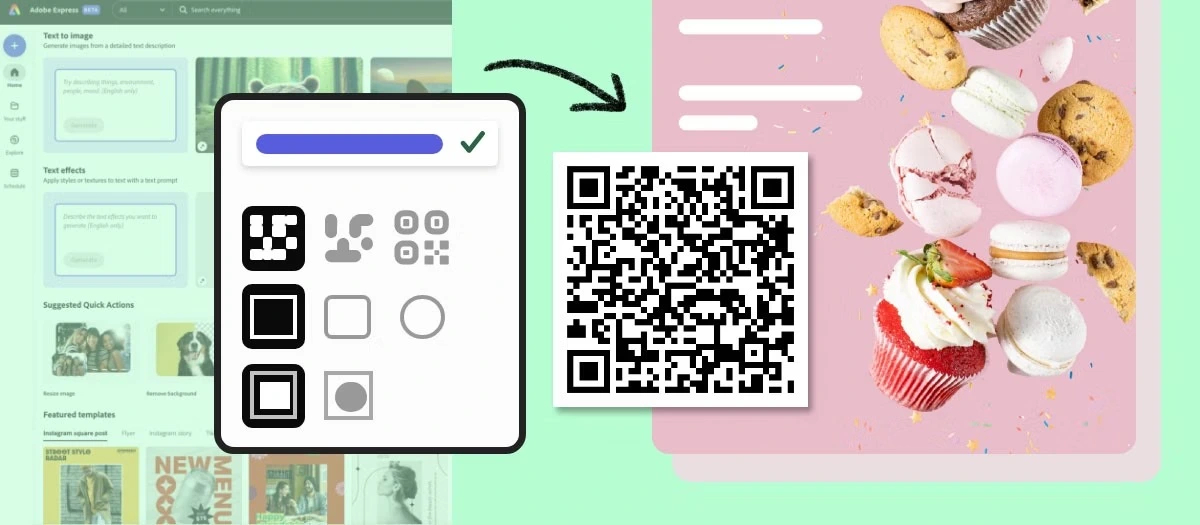
Creating a QR code with Adobe Express is a straightforward process that can be done in a few simple steps. Adobe Express (formerly known as Adobe Spark) offers a user-friendly interface that allows you to generate QR codes quickly for websites, text, phone numbers, and more. How to create a QR code with tools like Adobe Express:

Step 1: Access Adobe Express

  • Go to the Adobe Express website. If you don’t already have an account, you’ll need to sign up or log in. Adobe offers both free and paid subscription options.

Step 2: Navigate to the QR Code Tool

  • Once logged in, locate the “QR Code Maker” from the tools section. You can find this by either browsing through the available tools on the dashboard or using the search bar.

Step 3: Enter Your Information

  • Enter the information you want to encode in the QR code. This could be a URL, a snippet of text, a phone number, or even a location. Make sure the information is correct as it cannot be changed once the QR code is generated.

Step 4: Customize Your QR Code

  • Adobe Express allows you to customize the appearance of your QR code. You can change colors, add a logo, or adjust the design to match your branding or personal preference. These features might vary depending on whether you are using a free or paid account.

Step 5: Generate and Download the QR Code

  • Once you are satisfied with the design and information, click on the “Generate” button. Adobe Express will create the QR code, which you can preview. If everything looks good, you can download the QR code in various formats such as PNG, JPEG, or SVG, suitable for printing or digital use.

Step 6: Test Your QR Code

  • Before using your QR code in a project or distributing it, make sure to test it with a QR scanner. This is to ensure that it correctly directs to the intended information or site.

Step 7: Use Your QR Code

  • Now that your QR code is created and tested, you can incorporate it into your marketing materials, business cards, posters, or any other medium where you want people to easily access your encoded information.

Adobe Express makes QR code creation simple and allows for customization that can help your QR code stand out or blend in with your design strategy.

Read more for valuable content visit the Business flax site.

Previous Post

The Untold Story of Lexie Wiggly: J. B. Mauney’s Ex-Wife

Next Post

Angelica Zachary: Everything You Should Know About Her

Related Posts

How AI Is Changing the Way Founders Research Vibe Coding
Tech

How AI Is Changing the Way Founders Research Vibe Coding

by ENGRNEWSWIRE
April 28, 2026
WPS Download: How to Get the Best Office Suite from the Official Source
Tech

WPS Download: How to Get the Best Office Suite from the Official Source

by Syed Qasim
April 25, 2026
From Beginner to Pro: Master Repairs with a Phone Opening Tool and Universal Phone Screen Holder
Tech

From Beginner to Pro: Master Repairs with a Phone Opening Tool and Universal Phone Screen Holder

by Admin
April 8, 2026
Telegram Download and Web Access: The Ultimate Guide to Secure Messaging
Tech

Telegram Download and Web Access: The Ultimate Guide to Secure Messaging

by Syed Qasim
April 1, 2026
A Traveler’s Guide to Internet Access in United Kingdom
Tech

A Traveler’s Guide to Internet Access in United Kingdom

by Apex BackLinks
March 26, 2026

Popular News

  • Tea Leoni and Tim Daly

    End of an Era: Tea Leoni and Tim Daly Confirm Split

    3 shares
    Share 0 Tweet 0
  • Raquel Pedraza: What Happened to Taylor Fritz’s Ex-Wife’s Tennis Career?

    4 shares
    Share 0 Tweet 0
  • Zach Bryan Height Revealed – How Tall Is He?

    3 shares
    Share 0 Tweet 0
  • Who is Drew Pritchard’s New Wife? Exclusive Details Inside

    3 shares
    Share 0 Tweet 0
  • The Infamous Nikki Catsouras Crash: What Happened?

    3 shares
    Share 0 Tweet 0

Recent Posts

Restaurant Furniture Solutions for Commercial and Hospitality Spaces

Restaurant Furniture Solutions for Commercial and Hospitality Spaces

May 2, 2026
How to Organise Your Kitchen for Maximum Efficiency

How to Organise Your Kitchen for Maximum Efficiency

April 29, 2026
Francis Bourgeois Net Worth: How a Trainspotter Turned Passion Into Income

Francis Bourgeois Net Worth: How a Trainspotter Turned Passion Into Income

April 28, 2026
How AI Is Changing the Way Founders Research Vibe Coding

How AI Is Changing the Way Founders Research Vibe Coding

April 28, 2026
WPS Download: How to Get the Best Office Suite from the Official Source

WPS Download: How to Get the Best Office Suite from the Official Source

April 25, 2026

Categories

  • Adventure (2)
  • Artificial Intelligence (1)
  • Automotive (34)
  • Beauty (2)
  • Biography (123)
  • Blog (177)
  • Business (192)
  • CBD (9)
  • Celebrity (433)
  • Cleaning Services (16)
  • Construction (8)
  • Crypto (28)
  • Education (30)
  • Entertainment (48)
  • Fashion (71)
  • Finance (12)
  • Fitness (12)
  • Food (3)
  • Games (26)
  • Health (96)
  • Home Decor (21)
  • Home Improvement (50)
  • Home Service (4)
  • How To (5)
  • Job (3)
  • Law (18)
  • LifeStyle (119)
  • News (21)
  • Pets (3)
  • Real Estate (24)
  • SEO (10)
  • Social Media (8)
  • Tech (175)
  • Travel (40)
  • Vape (1)

About Us

Newspioneer is an engaging platform for the readers who seek unique and perfectly readable portals to be updated with the latest transitions all around the world whether it is News, Life Style, Business, or any new events around the world. We gel well with the requirements of the current generations with creative writing styles for each news piece. Newspioneer is where one can be assured of refreshing news with unadulterated content right from the source.

  • Home
  • About Us
  • Privacy Policy
  • Contact Us

© 2024 Newspioneer All Rights Reserved

No Result
View All Result
  • Home
  • Business
  • Celebrity
  • Biography
  • Games
  • Crypto
  • LifeStyle
  • News
  • Tech
  • Contact Us

© 2024 Newspioneer All Rights Reserved